Just Color Picker
Free portable offline colour picker and colour editor for web designers and digital artists
Graphic designers, digital artists and webmasters can get artistic ideas and inspiration at any moment. They often notice colours and colour combinations for their projects while doing something else. This is why a quick and convenient way of capturing those colours is essential. With Just Color Picker, identifying the colours, saving, editing and combining them into beautiful colour combinations is super easy. Unlike many other apps, Just Color Picker was created by a person who actually uses it on an everyday basis. It is software for designers and digital artists created by a designer and a digital artist.
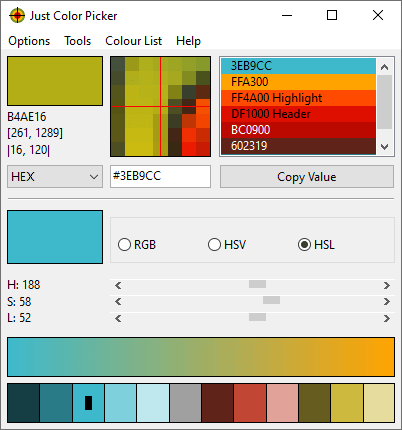
Just Color Picker features:
- Extensive range of colour code formats: HEX, RGB, HSB/HSV, HSL, HWB, CMY, CMYK and TColor.
- Averaged colour sampling for easy colour noise handling.
- 3x, 9x and 15x magnifier and keyboard control of the mouse cursor movements for greater precision.
- Screen freeze feature for sampling the colour of the elements that change on mouse-hover.
- Point lock feature for monitoring the colour in the set screen location independent of the mouse cursor position.
- Calculation of pixel distance between points.
- Colour list for saving, cataloguing and re-using the picked colours.
- Ability to open, edit and save Adobe Photoshop .aco colour swatches (Adobe color files) and GIMP .gpl palette files.
- Interaction with the standard Windows and macOS colour dialogs.
- User comments and notes for picked colours.
- Conversion of Hexadecimal and RGB colour codes into the corresponding colours.
- Red-Green-Blue (RGB), Cyan-Magenta-Yellow (CMY) and Red-Yellow-Blue (RYB) colour wheels with marked triads and complementary colours.
- Harmonious colour scheme generator.
- RGB, HSV and HSL colour editors for adjusting and editing colours.
- Gradient transition between any two colours for creating a wide range of in-between hues.
- Text tool for evaluating the readability of the selected font and background colour combinations.
- CSS-ready colour codes for HTML, PHP and other web-pages.
- Optional stay-on-top behaviour.
- User-defined hotkeys.
- Copying the colour code to the clipboard with one mouse click or automatically.
- High-DPI awareness.
- Multi-display support.
- Light and dark modes, adjusting automatically to the system settings.
- No installation required. Just Color Picker is a portable application and can be run directly from a USB stick.
- Multilingual interface: English, Chinese Simplified, Chinese Traditional, Czech, Danish, Dutch, Finnish, French, German, Greek, Hungarian, Italian, Japanese, Korean, Norwegian, Polish, Portuguese, Russian, Spanish, Swedish.
Download
Download free Just Color Picker 5.9 for Windows 64 bit (exe, portable, size 4.3MB)
Download free Just Color Picker 5.9 for Windows 64 bit (zip, portable, size 1.6MB). Both the zip x64 and the exe x64 files are portable and identical. The zip alternative is offered purely for convenience.
Download free Just Color Picker 5.9 for Windows 32 bit (exe, portable, size 3.3MB)
Download free Just Color Picker 5.9 for macOS 64 bit (dmg, size 4.9MB)
Attention! On Windows, do not put jcpicker.exe in Program Files or other protected folders, as the system may not permit Just Color Picker to create new files. On macOS, don't forget to allow Just Color Picker the access to the screen in System Preferences Privacy settings. For more information, read the user manual and q&a below.
Supported platforms
Windows 32 and 64 bit 7, 8, 10 and 11. Portable application, no installation required.
macOS 64 bit 10.8 or later. An older 32-bit version is still available in the version history.
Licence
100% freeware. No registration, no snooping, no user data collection, no nonsense.
Latest version
5.9, released 10 July 2023.
What's new: Added the Separator menu option that affects all colour formats consisting of multiple parts; bug fixes and improvements.
Minor updates for v5.9:
20 July 2023: Brought TColor format back.
26 July 2023: Extended the effect of the Separator setting to CSS codes, to offer users the option to display CSS colour functions in the modern syntax or in the legacy syntax.
User Manual
Main window
Just Color Picker is a tool for capturing the colour of any pixel in any screen area and displaying its code in a variety of formats: HEX, RGB, HSB/HSV, HSL, HWB, CMY, CMYK and TColor.
The colour of the pixel that your mouse cursor is currently pointing at is shown in the current colour area at the top left corner of the application window, with the code of that colour, the coordinates of that pixel, and the horizontal and vertical distance between the two latest-picked pixels displayed below it.
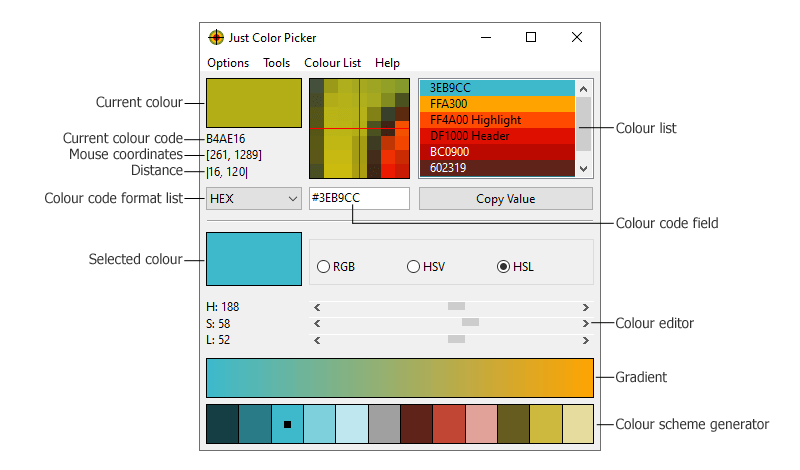
To pick a colour and its code, choose the desired format in the colour code format list, then point the mouse cursor at any pixel or a screen area and press the hotkey. On Windows, the default hotkey combination for capturing the colour is Alt+X, and it can be changed in Options – Hotkeys menu. On macOS, the hotkey combination is Option+X, and it can be changed in Just Color Picker menu.
To copy the code of the colour to the clipboard, click the Copy Value button: it will copy the whole content of the colour code field, or its selected part if you selected a part of the code beforehand.
The RGB/HSV/HSL colour editor contains the latest-picked colour or the selected colour, which you can modify and then pick the resulting colour for your further needs. Use the RGB mode to change red, green or blue components of the colour. Switch to HSV or HSL modes if you need to change the colour's hue, saturation, and value or lightness.
The harmonious colour scheme generator suggests a few colours that may be a good combination with the latest-picked, selected or being-edited colour. With this feature, you can quickly find a nice colour combination, for example for your web site. Simply choose the main colour of your design, and the colour picker will offer a few colours harmoniously matching with it. These colours are merely an automatic suggestion; you can pick and edit any of them further.
The gradient feature provides you with a wide range of nuances and gradations between the two latest-picked or selected colours, in case you need an in-between colour.
Colour list
All the colours you picked since the launch of the program are displayed in the colour list on the right side of the window. When you close the application, these colours will be automatically saved into a file and reappear in the list when you run the app again.
On Windows, it is a jcpicker.txt file, created in the same location where you placed the jcpicker.exe file. You can delete, move or rename that text file if you wish; in that case Just Color Picker will start with an empty colour list. Via the Colour List menu, you can manually save multiple lists by giving them different names and/or saving them into different locations, and load any of them later by opening the required file via the same menu.
On macOS, due to security limitations, Just Color Picker settings and the automatically-saved colour list are always placed into .cfg and .cfg2 files in the user's home directory. You can also save and open colour lists manually via the Colour List menu. Note that macOS does not permit saving files into protected folders like Applications.
To select a colour in the list, simply click the colour line. This will make the colour active and its code will be displayed in the colour code field ready to be copied or edited. You can move the selected colour line up or down in the list using mouse drag-and-drop. A right-click on a selected colour line allows you to copy the colour code to the clipboard, add or edit a comment for the colour, or delete the colour from the list. Colour comments can be of a great assistance in large design projects, or to those with colour vision deficiencies or colour blindness. You can delete a colour from the list by selecting it with a left-click and then pressing the Delete key.
The colour list is connected to the standard Windows Color Dialog and macOS Color Picker. Double click a colour in the list to open it in the operating system's colour dialog. If you edited the colour in the dialog and clicked Ok, the new colour will override the original colour in the Just Color Picker list. If you wish to keep the original colour, pick the new colour from the dialog with Just Color Picker and then click Cancel in the dialog: this will add the new colour to the colour list, leaving the original colour unchanged.
Code-to-Colour conversion
For the inverse process of converting colour codes into the corresponding colours, enter the colour code into the colour code field and press Enter. The colour will appear in the colour list and its code will be displayed in the colour code field in exactly the same way as if you picked the colour from the screen.
Just Color Picker can convert HEX and RGB codes into colours:
- To convert a HEX code, enter the six-character colour code with or without the preceding # symbol and press Enter.
- To convert an RGB code, enter the three digital parts of the colour code (from 0 to 255) separating the parts with commas, semicolons and/or spaces and press Enter.
If Just Color Picker does not display the colour after you pressed Enter, it means the colour code has been entered incorrectly. Correct the input and press Enter again.
Screen freeze
The screen freeze feature (Windows only) is handy for picking the original colour of an element that changes its colour when the mouse cursor hovers over it.
Before you begin using the screen freeze feature, first open Hotkeys menu in Options and set a key combination for screen freeze by selecting it and pressing your chosen keys (for example, Ctrl+Shift+Z), then press Ok. Make sure to choose a combination that is not already used for something else in another program you have on your computer.
To pick the colour from screen any element before it changes, press the screen freeze key combination, then hover the mouse over the element and press the colour-picking combination (default Alt+X). This will grab the original colour and unfreeze the screen. The screen can also be unfrozen without picking a colour by simply pressing the screen freeze key combination again.
Point lock
The point lock feature locks the sampling point on the screen and displays the colour of that point regardless where the mouse cursor is. This can be handy when working with video and animation. If you wish to use point lock feature, first open Hotkeys menu in Options and set a key combination for it by pressing the keys (for example, Ctrl+Shift+X). Make sure to choose a combination that is not already used for something else in another program you have on your computer. Now, to lock the colour sampling point, hover the mouse over the pixel you want to lock and press the point lock hotkeys. Just Color Picker will keep displaying the colour of that pixel even after you move the mouse somewhere else. If Just Color Picker window is active, you can pick the displayed colour using the colour-picking key combination. To unlock the sampling point, press the point lock hotkey again.
Main menu
Options
Just Color Picker features 3x, 9x and 15x zoom of the mouse cursor area. Use the Zoom menu to change the zoom magnification or to switch it off. You can also use PageUp/PageDown keys for zooming in and out whenever Just Color Picker window is active with the Zoom enabled.
Colour Sample Area menu offers an option for picking either the exact colour of a single pixel, or an average colour value of a 3 by 3, 5 by 5, or 7 by 7 pixel area with the pixel pointed at in the centre of the area. When the 3 by 3 Average, 5 by 5 Average, or 7 by 7 Average option is chosen, a grey rectangle bounding the averaged pixels appears in the zoom field, and a “3x3 Avg”, “5x5 Avg”, or “7x7 Avg” label is shown in the current colour area.
To set or change the hotkeys, go to the Hotkeys menu. Select a new hotkey combination for picking the colour value, freezing the screen or locking the sampling point by pressing the keys, which will be displayed in the window, then click Ok. Be careful: do not choose a combination that is already assigned to another program, otherwise the combinations may not work correctly in either of the programs.
The Auto Copy option enables automatic copying of the latest-picked colour code to the clipboard.
The enabled Lowercase Code option displays the letter characters of HEX and TColor colour codes in lowercase. This setting does not affect CSS prefixes, which are always lowercase.
Use the Show CSS code option to display colour values in the colour code field in CSS syntax. This option is applicable to HEX, RGB, HSL, HWB and CMYK colour formats and will display, for example, the red colour as #FF0000, rgb(255 0 0), hsl(0 100% 50%), hwb(0 0% 0%) and cmyk(0% 100% 100% 0%) respectively.
The Separator option sets the character that separates the components of multi-part colour codes: RGB, RGB[0,1], HSB/HSV, HSL, HSL(255), HSL(240), HWB, CMY and CMYK. This option also affects CSS codes. Choose the space separator to display CSS colour functions in the modern syntax; or choose comma to display the legacy syntax.
Enabling the Stay on Top option will keep Just Color Picker window over all other program windows until you close it, minimize it, or disable the Stay on Top option.
Tools
The Tools menu contains the Colour Wheels and Text tools.
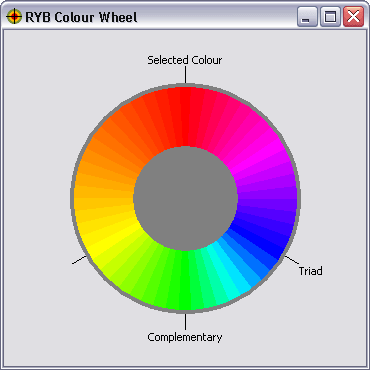
The Colour Wheels tool displays RGB (Red, Green, Blue) / CMY (Cyan, Magenta, Yellow), and RYB (Red, Yellow, Blue) colour wheels for the latest-picked or selected colour. The colour wheels have the selected colour, triads and complementary colours marked, and contain as many colours as set in the Number of Colours option. You can open any number of wheel windows to compare the colours. Please note that white, black and shades of neutral grey are not technically colours: they do not have hue or saturation, and therefore they do not produce a corresponding colour wheel.
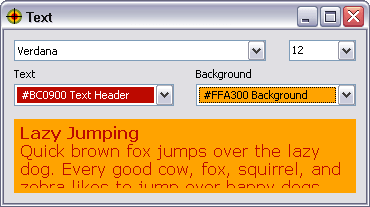
The Text tool helps to determine whether a particular combination of font colour and background colour is going to look good and be easy to read. The tool becomes available whenever you picked two or more colours. It offers a comprehensive list of all fonts installed in your system, a list of standard font sizes with an option to enter a custom font size, and a copy of the picked colour list for choosing the font and background colours. The window can be resized to accommodate larger fonts and longer texts.
Colour List
If you want to keep some colours separately for future use, go to the Save As menu to save the colour list to a new text file. Use the Open menu item to load it back later. The Clear All command clears the list. You can also save the picked colours to an HTML file, which displays the picked colours in a more user-friendly format, with colour swatches, but keep in mind that HTML files cannot be loaded back into the colour picker.
By default, with Auto Save option enabled, when you close Just Color Picker, it saves all colours present in its colour list to a file named jcpicker.txt in the directory where you placed jcpicker.exe file. On each start, Just Color Picker opens that file and re-populates the colour list. If jcpicker.txt file has been deleted, moved or renamed, Just Color Picker will start with an empty list. If you disable Auto Save, Just Color Picker will launch with an empty list and will not save any picked colours on exit. The old jcpicker.txt file will remain in the application folder and you can load it again later by re-enabling Auto Save and restarting the application without picking any new colours. If you pick any new colours after re-enabling Auto Save, they will overwrite the old colour list the moment you quit the application.
In addition, Just Color Picker can open, edit and save Adobe Photoshop .aco colour swatches (Adobe Color files) in RGB and HSB format. It can also read, edit and save GIMP .gpl palette files.
Portability
Just Color Picker is a portable application, which means you don't need to install or un-install it. Simply double click the downloaded jcpicker.exe or jcpicker.dmg file to start using it. If you want to remove Just Color Picker from your computer, all you need to do is close it and delete its file(s).
On Windows, the application file is jcpicker.exe. It creates jcpicker.ini file with its settings and jcpicker.txt file with picked colours in the same folder where you put jcpicker.exe. To move or copy Just Color Picker to another device, you can either copy jcpicker.exe file alone, to start afresh, or copy it with .ini and/or .txt file, to keep your settings and/or colours. If you rename jcpicker.exe, its .ini and .txt files will be created with the new name too.
Do not put jcpicker.exe in Program Files or other protected folders, as the system may not permit Just Color Picker to create new files, which would make it unable to remember your settings or picked colours between sessions. It is best to use a separate folder for all portable programs and place Just Color Picker in its subfolder, e.g. C:\Portables\JustColorPicker\jcpicker.exe, and then create a shortcut to jcpicker.exe and move it wherever you deem most convenient.
On macOS, the application file is jcpicker.dmg. As macOS limits the locations where an app can create new files automatically, Just Color Picker settings and the automatically-saved colour list are placed into Just Color Picker.cfg and Just Color Picker.cfg2 files in the user's home directory in the .config hidden folder that can be displayed by pressing Command+Shift+.(dot) after opening the home directory in Finder. You can save and open colour lists in different locations manually via the Colour List menu, however macOS does not permit saving files into protected folders like Applications.
About colour code formats
HEX and RGB colour codes consist of three parts that define the combination of Red, Green and Blue colour components. The first two characters of HEX code or the first number of RGB code define the red component, the next two characters or the second number define the green component, and the last two characters or the last number define the blue. The value of each part of the colour code can vary from 00 to FF for HEX, from 0 to 255 for RGB, and from 0 to 1 for RGB [0,1].
HSB and HSV. The HSB (Hue, Saturation, Brightness) or HSV (Hue, Saturation, Value) colour codes define a colour in terms of the following three components:
Hue (H) gives the colour its name, such as “pink” or “yellow”. Hue ranges from 0 to 360 degrees and looks like a colour wheel, starting with primary red at 0°, passing through green at 120°, blue at 240° and then wrapping back to red at 360°; all mixtures between the adjacent pairs of colours are linear.
HSB/HSV Saturation (S) is the purity of the colour, a measure of the amount of white mixed with a pure hue. The lower the saturation of a colour, the more faded or dull the colour looks. The higher the saturation, the purer and more intense the colour appears. Mixing pure colours with white produces so-called tints and reduces saturation. Saturation ranges from 0 to 100%.
Brightness (B)/Value (V) of a colour refers to the amount of black present in the hue. Mixing pure colours with black produces shades and affects the brightness/value of the colours while leaving the saturation unchanged. Value ranges from 0 to 100%, with pure colours at 100%, and near-black colours close to 0%.
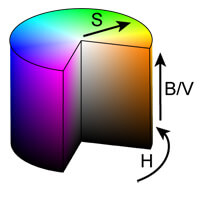
Some applications use different ranges for the components. For example, S and V/B can vary from 0 to 1, H may be normalized to 0–100%, or all three components can vary from 0 to 255. Just Color Picker uses the “degree, percent, percent” notation.
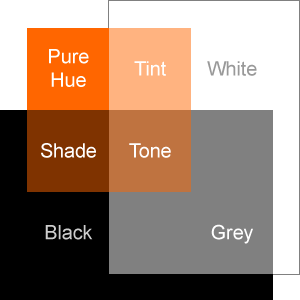
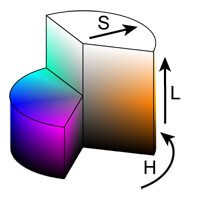
HSL (Hue, Saturation, Lightness) has hue (H) defined as in HSB/HSV and ranging from 0 to 360°. The Lightness (L) — sometimes also called Luminance or Luminosity — controls both shading and tinting. The transition from black to a pure hue to white is symmetric and is achieved solely by changing the lightness: at the midpoint of 50% lightness and full saturation the hue is pure; as the lightness decreases below the midpoint, it produces the effect of shading with 0% lightness being black; as lightness increases above 50%, it produces the effect of tinting with 100% lightness being white. When the HSL Saturation (S) — also called Intensity or Chroma — is decreased, the lightness controls the tones of grey: L 0% still produces black, and L 100% — white, but the intermediate lightness values result in greyed colours, or neutral grey tones if S is 0%. In other words, HSL tints and shades have full saturation (S), and only tones — mixtures with both black and white — have saturation less than 100%. Pure colours have lightness (L) 50%. Both saturation and lightness range from 0 to 100%. In addition to the standard HSL (0–360°, 0–100%, 0–100%) Just Color Picker has two other HSL formats with all thee parameters ranging from 0 to 255 in HSL(255) and from 0 to 240 in HSL(240).
If you require the parameters to be in the 0–1.0 range, you can easily convert it using percent: e.g. 73% = 0.73.
CMYK is a colour model used in colour printing. It refers to the four printer inks — Cyan, Magenta, Yellow and Key (black); with each value ranging from 0 to 100. Because both RGB and CMYK colour spaces are device-dependent, there is no perfect general conversion formula between them. Just Color Picker uses the simplest conversion, sufficient for most design applications.
CMY format consists of three elements — Cyan, Magenta and Yellow — each ranging from 0 to 100. It produces codes similar to CMYK for pure hues and tints; however once the colour moves into shades or tones (black is added), CMY codes start to differ from CMYK due to the black component becoming a part of C, M and Y instead of being separated into K.
HWB is a colour model developed as a more intuitive alternative to HSV and HSL, and is supposed to be easier to use. The hue (H) component is the same as in HSV and HSL. Each pure hue can also have whiteness (W) and blackness (B) ranging from 0 to 100%.
TColor format is used in programming languages such as Object Pascal and Delphi, and integrated development environments such as Lazarus. It is a hexadecimal number representing RGB colour in the $BBGGRR format. For example, $FF0000 is pure full-intensity blue, and $0000FF is pure red.
Using keyboard for a greater mouse pointer precision on Windows
There are two ways to move the mouse cursor using the keyboard. The simple way: make sure Just Color Picker window is active and press Ctrl + ArrowKeys.
The global way: Windows offers the Mouse Keys option for controlling the mouse cursor with keyboard. To be able to move the mouse pointer with keys on your keyboard, you need to switch this feature on:
- In Windows XP: Start button – Settings – Control Panel – Accessibility Options – Mouse tab – Check “Use MouseKeys”.
- In Windows 7: Start button – Control Panel – Ease of Access, and then click Ease of Access Center to open Ease of Access Center. Click “Make the mouse easier to use”. Now, under “Control the mouse with the keyboard”, check the “Turn on Mouse Keys” box.
- In Windows 8: go to Control Panel – All Control Panel Items – Ease of Access Center – Make the mouse easier to use. Check the “Turn on Mouse Keys” box.
Now you should be able to use the numeric keypad on your keyboard for moving the mouse pointer as follows:
- 1 – down and to the left
- 2 – down
- 3 – down and to the right
- 4 – left
- 6 – right
- 7 – up and to the left
- 8 – up
- 9 – up and to the right
This function is a part of Windows and Just Color Picker has no control over it. Enabling this option will affect the whole system, not only Just Color Picker.
Using keyboard for a greater mouse pointer precision on macOS X
There are two ways to move the mouse cursor using the keyboard. The simple way: make sure Just Color Picker window is active and press Option/Alt + ArrowKeys.
The global way: you can enable Mouse Keys and use the keyboard or numeric keypad for moving the mouse pointer and pressing the mouse button. To enable Mouse Keys, press Command+Option+F5 and select the checkbox. Or go to Apple menu, then System Preferences, click Accessibility, click Mouse & Trackpad, then select the Enable Mouse Keys checkbox.
With a numeric keypad:
- To move the mouse pointer, use the 7, 8, 9, 4, 6, 1, 2, 3 keys
- To click the mouse button, press 5
- To press and hold the mouse button, press 0 (zero)
- To release the mouse button, press . (period)
With the keyboard:
- To move the mouse pointer, use the 7, 8, 9, U, O, J, K, L keys
- To click the mouse button, press I
- To press and hold the mouse button, press M
- To release the mouse button, press . (period)
Note: when Mouse Keys is on, you can't use the keyboard or numeric keypad to enter text.
The usual boring yet important disclaimer
This product is distributed “as is”. No warranty of any kind is expressed or implied. You use this software at your own risk. The author is not liable for data loss, damages, loss of profits or any other kind of loss incurred directly or indirectly while downloading, using or performing any other action in relation to this software. The author has no control over the quality, safety or integrity of any copy of this software published on any third-party site.
Questions, Answers, and Troubleshooting
I'm pressing the default hotkey combination Alt+X, but the Color Picker is not picking the colour.
The hotkey combination may be already assigned to another application installed on your computer. To fix the problem, simply choose a different hotkey combination in the Color Picker's Options menu.
How to change or clear out the hotkeys that have been set earlier.
To change a hotkey combination, go to Options menu, then Hotkeys. Select the hotkey you wish to change, press a new key combination, and click Ok.
To delete a set hotkey, exit Just Color Picker application, then go to the location where you placed its files, and open jcpicker.ini file in a text editor, for example Notepad. If you want to delete the Screen Freeze hotkey, find the line beginning with HotkeyFreeze=..., and replace the number after the “=” sign with a zero. The line should become HotkeyFreeze=0. For deleting the Point Lock hotkey do the same for the HotkeyLock=... line. Save the changes and close the file. It is not recommended to delete the main hotkey, as you will be unable to pick any colours until you assign a new combination for that function.
On Windows: when working in another program and Just Color Picker is simply open in the background, the screen freezes when certain keys are pressed.
Go to Options menu, then Hotkeys, and check if that key combination is assigned to the Screen Freeze feature. You can change the combination in Just Color Picker to eliminate the clash.
On macOS: Just Color Picker is not detecting windows of other apps, images, webpages, etc.; it only shows the colours of the desktop and its own window.
Open Apple menu, then System Preferences. Choose Security & Privacy, then click Privacy. Select Screen Recording and check the tick-box next to Just Color Picker to allow it to access and record your screen. Restart Just Color Picker app for the changes to take effect. Just Color Picker doesn't actually record your screen, but it needs this permission to be able to take the colours of the screen pixels.
Just Color Picker keeps picking the same grey/black colour no matter what colour the mouse is pointing to.
Open Mouse Properties in Windows Control Panel, go to Pointer Options and make sure that the “Display pointer trails” setting is disabled. Mouse cursor trails add an extra layer to the mouse pointer and make the colour picker pick the colour of the tip of the mouse pointer rather than the underlying colours.
Why does Color Picker sometimes show slightly different colour codes for exactly same colour?
Occasionally, the colour code you set in the colour editor may be slightly different the code for the same colour displayed in the current colour area. This happens as a result of the rounding discrepancy that arises from calculations during colour format conversions. The difference is usually no greater that 1 gradation and should not be significant enough to become obvious to the human eye. For the same reason you may see a small difference in colour codes when using different software.
How to uninstall Just Color Picker? I can't find it in the list of installed programs in Windows.
Just Color Picker is portable software and therefore doesn't need to be installed or uninstalled. To start using Just Color Picker, simply download and run it: it is immediately ready for use, nothing is being installed, and this is why Just Color Picker doesn't appear in the list of installed software. To delete Just Color Picker from your computer, simply close it and delete the jcpicker.exe file with, if present, jcpicker.ini and jcpicker.txt files in the same folder.
Please note: some third-party websites wrap the original program files into their own installers, which may contain unwanted add-ons or even malicious code. Therefore, it is always wise to download Just Color Picker from annystudio.com rather than from any other site. Only downloading the program directly from the author's site can guarantee that you are getting the original, clean, portable application without any unwanted additions.
Can Just Color Picker be used in a commercial environment (for example, in a professional design studio)?
Yes. You can use Just Color Picker wherever you like, provided you comply with the copyright conditions.
We would like to publish a note about your software in a magazine/ include your software into cover CD/ publish on a web-site/ etc. and want to ask your permission.
Just Color Picker has no limits on its usage and distribution as long as the program file is not modified in any way (including its incorporation into any downloaders/installers or addition of advertisement) and you comply with the copyright section. You can share Just Color Picker with friends and colleagues, burn it onto CDs, DVDs or other media, include it onto cover CDs, publish notes in magazines, write articles on other website, share the information about it via social media, or upload it to software archives without asking permission. Your efforts in making this little program more popular and any additional links to annystudio.com website are appreciated.
I like your free software. What can I do for you?
You can help to make Just Color Picker more widely used by recommending it to your friends and colleagues, or by adding comments and reviews about Just Color Picker on the sites and social media you use. You can also make a donation to a worthy cause.
Version History
| Version | Release Date | What's New |
|---|---|---|
| 5.9 | 10 July 2023 | Separator menu option that affects all colour formats consisting of multiple parts; merged and HTML and HEX code formats; renamed Delphi format to TColor; fixed the bug where the colour code could alter slightly after changing its format or making a selection in the colour list. |
| 5.8 | 9 May 2023 | Dark mode. |
| 5.7 | 1 Dec 2022 | Fixed the issue where Just Color Picker failed to launch from certain file system locations; other minor bug fixes. |
| 5.6 | 23 Sep 2021 | Improved zoom area rendering on macOS; Auto Save option for Colour List. |
| 5.5 | 1 Oct 2020 | Point Lock feature; colour list comment alignment; bug fixes and minor improvements. Colour codes are now saved to jcpicker.txt file without whitespaces, to facilitate Just Color Picker's integration with other software. Added automatic colour list saving and loading on macOS. |
| 5.4 | 31 Mar 2020 | Lowercase Code option for HTML; HEX and Delphi colour formats. System-independent decimal separator in RGB[0, 1] format, always displayed as a dot regardless of the country settings. |
| 5.3 | 5 Dec 2019 | Stretchable colour list with automatically saved colours on application exit. |
| 5.2 | 22 Jan 2019 | Added CMY format; improved input check for code-to-colour conversion; upgraded macOS application file from 32 to 64 bit. |
| 5.1 | 19 Mar 2018 | Improved handling of high DPI screens; corrected cursor positioning in multi-screen setups; added 7x7 pixel averaged colour sampling. This is the last 32-bit macOS version: Just Color Picker 5.1 (dmg) |
| 5.0 | 15 Jan 2018 | Improved handling of larger system fonts; added HWB and RGB Integer colour formats; added Screen Freeze feature for sampling the colour of the elements that change on mouse-hover (Windows only). |
| 4.6 | 11 May 2016 | Added automatic copying of the latest-picked colour code to the clipboard; improved support of Grayscale and CMYK colour spaces in .aco files; comments for identical colours are now combined into one line separated by semicolons. |
| 4.5 | 9 Mar 2016 | Added the option to display and copy CSS-compatible colour codes for Hexadecimal/HTML, RGB and HSL formats; added interaction with the standard Windows and macOS colour dialogs. |
| 4.4 | 23 Nov 2015 | Added PageUp/PageDown key support for zooming in and out; added moving the mouse cursor with keyboard on macOS: Option/Alt + ArrowKeys. |
| 4.3 | 19 Mar 2015 | Added the ability to re-order the colour entries in the colour list using mouse drag-and-drop; added the calculation of the horizontal and vertical distance between the two latest-picked pixels for measuring the size of objects and gaps; improved adaptability of the interface font size; added Delphi TColor code format. |
| 4.2 | 16 Oct 2014 | Ability to open, edit and save Photoshop's .aco colour swatches (Adobe Color files) and GIMP's .gpl palette files. |
| 4.1 | 1 Oct 2014 | Improved precision of the colour code calculation; new colour scheme generator. |
| 4.0 | 8 Jul 2014 | Added CMYK colour format; improved multiple monitor support: now the primary monitor can be either side; released macOS version. |
| 3.5 | 10 Apr 2014 | Added multiple monitors support; added moving the mouse cursor with keyboard: Ctrl + ArrowKeys; fixed two bugs: always-black current colour area on Windows 7, and the application becoming unresponsive when the Stay-on-Top option was enabled. |
| 3.4 | 20 Mar 2014 | Added high-DPI screen support; added saving of HTML colour list files. The program has been completely re-written to keep up with the modern devices and systems. New icon, Picky the Chameleon. Like Just Color Picker, he is small, quick, good-looking, and is good at choosing and matching colours. :-) |
| 3.3 | 3 Oct 2013 | Added standard HSL colour editor; fixed a minor bug in HSL colour format; the Text tool now can display bold headers. |
| 3.2 | 25 Mar 2013 | Added standard HSL colour format to complement the existing HSL(255) and HSL(240). |
| 3.1 | 19 Jan 2013 | Added the option to always open the same colour history file on start; fixed the flickering issue in some interface elements. |
| 3.0 | 17 Oct 2012 | Added Text Tool for evaluating the readability of the selected font and background colour combinations; added the .ini file creation. |
| 2.6 | 1 Sep 2011 | Added full red-green-blue (RGB) and red-yellow-blue (RYB) colour wheels with user-defined number of colours. |
| 2.5 | 9 May 2011 | Added averaged colour picking, for picking colours in the areas with colour noise. |
| 2.4 | 4 Feb 2010 | Added the ability to add a comment for each picked colour. |
| 2.2 | 1 Nov 2009 | Just Color Picker became Unicode, so all languages should now be displayed correctly. If some parts of the interface are not displayed in your language, it simply means the translation is old or incomplete. |
| 1.9 | 1 Jun 2008 | Added multilingual interface; added HSV colour editor; added new colour history features. |
| ... | ... | ... |
| 1.0 | 2003 | The first version of the Color Picker. Very small and simple; just a colour picker. |
I really like Just Color Picker. I replaced a color selector that I've been using for over 15 years. The only thing I would like to see added is the ability to set the X and Y coordinates and have it start where I position it, rather than in the center of the screen. If I have somehow missed the option to do this, I apologize.
Gary, 8 January 2020
It's great to hear that you liked JCPicker. And you haven't missed anything: it does launch in the middle of the screen, to prevent its tiny window from being lost beyond the screen bounds when screen resolution changes, or additional monitors are disconnected or rearranged, as many designers use multi-screen setup for their projects.
I absolutely love this tool and use it so much it's a centrepiece of my desktop.
My question is how can I get the .ini & .txt files that are also appearing on the desktop to be saved in another location without having to move the app itself from my desktop? Is this possible?
Matt, 16 March 2020
This is quite easy to achieve.
The .ini and .txt files are always created and kept in the same place where jcpicker.exe file resides. This is done for simplicity and portability.
If you want to be able to run JCPicker from your desktop, but don't want to see its ini/txt files there, you can do the following:
1. Place jcpicker.exe, .ini and .txt files in another folder of your choice.
2. Right-click the .exe file and select "Create shortcut" from the menu.
3. Move that shortcut to your desktop.
Now you will simply need to double-click the shortcut on your desktop to launch JCPicker, but you won't have its auxiliary files cluttering your desktop.
Awesome! Thank you!
Matt, 17 March 2020
Hello from South Africa.
I just wanted to say thank you for creating this tool. I've been using it since 2008 in college and there's no other tool that comes close. It saves me from having to open things like Photoshop to just get 1 single colour.
This graphic designer and web developer in the making is thankful :D
Leah, 30 January 2021
I have just downloaded this app & it is just what I needed so I'd like to thank you very much for that.
One other thing I would like to do is to fill a cell in Excel with one of the saved colours or the currently selected colour. Is this possible?
Larry, 29 March 2021
I am glad to hear that you like Just Color Picker.
I don't have Excel to check how this may work exactly, but I presume that its menu for changing the cell colour would have either some sort of "custom colour" option or a way to modify the standard colours. This normally opens the colour-choice dialog where you can enter your own colour codes. If, for example, Excel uses RGB codes, you could simply switch Just Color Picker to RGB mode and use the codes it displays.
A great tool that I use a lot when editing photos.
Anonymous, 4 April 2021
Great tool! But I want to suggest a function for the Hotkeys window, to clear the hotkeys that have set earlier. For example, I want to delete the shortcut for screen freeze, but once I set it, there is no way to undo.
Juan, 8 April 2021
There is a way to clear the hotkeys. But because not many users want to do that, there is no dedicated button for it in the Hotkeys window.
To clear the Screen Freeze hotkey, do the following:
1. Exit Just Color Picker.
2. Go the the location where you placed JCPicker application files.
3. Open jcpicker.ini file in a text editor, for example in Windows Notepad.
4. Find the line that begins with HotkeyFreeze=... and replace the number after the "=" sign with a zero. It should become HotkeyFreeze=0
5. Save the changes and close the file.
I just downloaded JCP a few days ago. It is excellent: brilliantly simple but powerful. And it has immediately become my go to color picker.
Anonymous, 11 April 2021
Dear Anny,
Thank you for your color picker, top position no. 1 and 2 searching for a color picker tool today. Worked fine.
Although more than that, I commend your site's code. If the bitcoin traffic matches the electric power consumptions of whole countries, the use of ready-made designs like for WordPress CMS worldwide, I believe, matches this easily too. Your site's "About" page code contains only 14848 characters, whereas a similar page of our Green party in Germany (WordPress) has 258284 of them!
Hans, 26 April 2021
Thank you for your message and for the compliments. I hope you enjoy using the Color Picker. And hopefully more webmasters start thinking about the environment and move towards simpler and more efficient coding.
Hi Anny,
Nice to see that you keep up your Just Colour Picker. I've been using it for years and I love it! ♥
Maybe you could implement RGBA format in one of your upcoming versions? E.g. rgba(41, 53, 63, 1)
Marcus, 2 May 2021
I am glad to hear that you like JCP and have been using it for a long time.
Unfortunately, it is not possible to implement RGBA in an app like JCP that works with everything that is displayed on the screen. To get the alpha-channel value from a pixel of some colour, the program must be able to separate the transparency of the overlaying image from its background, which means it must operate within the software or the interface that is displaying that image. JCP simply picks the resulting colour of any visible pixel as it is displayed by the screen hardware. This makes it possible to pick the colour from anywhere on the screen, but it also means that transparency cannot be picked as a separate value.
I'm trying your software now. It's so simple and very functional. Thanks!
Kevin, 16 June 2021
Such a great tool! Thanks for it, it works extremely well.
John, 29 July 2021
JCP is very well done. You've struck an excellent balance between staying focused to the core task, while adding a strong array of useful supporting features. An offline color picker tool is one of those things that I have only occasional use for, and rarely bother to keep in my toolbox. This time around, I found JCP and the Colour List and Save features fit right into my current need. This stays in the toolbox.
I respect and admire your encouraging donations to worthy organizations. But IMO, sometimes the advocate deserves some beer/coffee money too. Any links for that?
Thanks! and be well!
Greg, 1 September 2021
Thank you for the compliments and the coffee/beer offer ;) I truly appreciate it. As I have no PayPal account or any other widely-used way of accepting donations, I am very happy to see extra support for the worthy causes.
Just Color Picker CMYK codes seem all wrong.
In Photoshop: #655756 is R:101 G:87 B:86 and C:66 M:66 Y:62 K:14
In Just Color Picker: #655756 is R:101 G:87 B:86 and C:0 M:14 Y:15 K:60
Why?
Kli, 22 March 2022
There isn't one single algorithm for converting the screen's RGB to the printer's CMYK. They are fundamentally different media, and therefore any conversion is only an approximation.
That said, Photoshop's conversion is probably more “correct”, given the price Adobe is asking for it, and the size of that company.
Hi! I just want to say that I've been using Just Color Picker for many years and it is my favourite color picker of all I've ever seen. It's a very balanced tool - I mean the functionality vs easy-to-use and ergonomics. Simple and it does want I need. Great thanks!
Vikenti, 30 April 2022
Hello to the other end of the globe! Thank you for creating and sharing this useful utility. One remark: The menu item "Language" still reads "Language" even after switching to German language. It should be "Sprache" in German (or whatever the word "Language" is in the chosen target language). Not a dramatic problem. Just to let you know.
MR, 23 May 2022
I am glad that you found Just Color Picker to be useful. Regarding the untranslated "Language" menu item, it is intentional. The reason for it is that some users choose a language that is incomprehensible to them, for example Korean or Japanese language, just out of curiosity, and then they can't figure out where to click to get back. So leaving the "Language" line unchanged helps those explorers to switch the language back to something more familiar. :)
Hello, just wanted to shoot a message expressing how grateful I am for Just Color Picker. I've been using it for over 5 years (probably more?).
Anyway, I just wanted to let you know this. Because it's free and all, I figured the least I could do is send a message on behalf of the silent majority so you know that your program is and always will be super useful to a lot of peeps.
Thanks again and keep being awesome :))
Jessica, 3 August 2022
Thank you for the message and the compliments. It is always nice to hear that people enjoy using my creations. I hope this little program remains useful to you for many years to come.
Thanks for this great tool. I do some hobby picture restore work and this is really useful for assisting in color matching.
Anonymous, 7 August 2022
First of all thank you for such a useful little tool!
New/better Italian strings: 'Point lock' = 'Blocca in questo punto' (or a short version, 'Blocca qui'), 'Cancel' = 'Annulla' when you want to cancel an action (instead of 'Cancella', which is 'Delete/Erase' in Italian).
And a screen freeze issue/question: on Win 10 it freezes the screen as it should, but pressing the pick-color shortcut just defreezes the screen without picking up the color under mouse pointer. My misunderstanding or something not working as expected?
hexaae, 25 October 2022
Thank you! I have updated the translation and fixed the issue with the Screen Freeze feature. It was a minor problem with Windows 10: with active screen freeze, the colour was actually picked, but the list of picked colours wasn't updated. Now the colour list updates properly upon pressing the colour-picking key combination. Please download and replace the application file, and everything should be working as expected.
Thank you for the new release! It has definitely fixed the problem where JCP did not run from C:\My Documents\Portable Apps\Just Color Picker\ folder. I use that Portable Apps folder for all portable programs and now I'm very happy that I can move JCP from C:\Program Files into C:\My Documents\Portable Apps\Just Color Picker\.
Also, regarding your advice not to put JCP in Program Files folder, just in case some other users do want to do that, they may find the following info helpful.
The problem is not in putting JCP application file in Program Files folder as such, but rather in the fact that Windows does not allow some apps to create new files there. In case of JCP, that is an ini file with settings and a txt file with colours. So, here is the workaround:
If you really want to put JCP in Program Files, put it in some other place first (some folder that is not system-protected), launch it from there, pick any colour, then close the app. See that it created two files jcpicker.ini and jcpicker.txt. Now grab all three JCP files: jcpicker.exe, jcpicker.ini and jcpicker.txt and move them to Program Files. This way you bypass Windows restrictions on creating files. Once the files have been created, everything should work fine.
Ben, 2 December 2022
Hello Anny, I want to say "thank you very much" for this great and very useful tool!! I use it a lot and I like it a lot.
Although I didn't have any problems running or using it, I would also like to thank users who add solutions. I can offer these two suggestions:
- Option to divide the gradient by a configurable number of gradations or steps.
- Option to change the interface to a Dark Theme.
With or without these additional options, your Just Color Picker is already the best there is, and for that I will always be grateful for your great work.
Damian, 8 May 2023
Thank you for the compliments and suggestions. While I am not too sure about the stepped gradient feature, the dark theme was certainly a good point. I have added it in version 5.8, so Just Color Picker now automatically switches between light and dark modes depending on the current state of the operating system.
Wow it looks great! This was much faster than I thought, amazing, seriously thank you so much.
Damian, 13 May 2023
I just wanted to mention what a great little program Just Color Picker is! One thing I have noticed, however, is that JCP occasionally gives the error "[C:\example.aco] is not a correct colour list file: Unsupported color space: 7". It turns out that "color space 7" is the CIELAB (L*a*b*) color space. It would be nice to have Lab format support but I understand if this isn't possible or not a priority.
J., 8 June 2023
Thank you for the information about the error. I have tried to implement RGB-to-L*a*b* conversion in the past, but, as it is rather complicated and involves converting a device-dependent colour space into a device-independent one, I was left unsure of the results, and so JCP still doesn't offer it.
Hello,
I am using your Just Color Picker and in the C# syntax of the RGB format the value is separated not by a "," (comma), but by a ";" (semicolon). It would be great if you could add this format (RGB C#) that will list the colour as something like 23;64;205.
Thanks in advance!
Greetings from Germany
Marvin, 7 July 2023
Thank you for the suggestion. Please download the latest version and check menu Options – Separator. :)
Love this color picker.
I would like to ask for just one thing. Is there a way to suppress the preceding # character in the HEX value? It's a bit time-consuming to have to keep cutting it off.
Wes, 10 July 2023
Yes, there is a way to remove the "#" prefix. If you need the pure 6-character hexadecimal colour code without any additions, simply open menu Options and make sure that "Show CSS Code" is unchecked.
Fantastic little app for windows - love the .aco export!!
Beth, 15 July 2023
Thank you for the color picker. The Delphi format was my favorite feature, and now it has been removed. Can you bring it back please?
Charlie, 19 July 2023
Done :) Please re-download and replace the application file. The Delphi colour code format is now called TColor, for the purpose of including other languages and IDE that use the same format.
Thank you very much for restoring the TColor/Delphi functionality. I appreciate it!
The syntax of the rgb function in modern CSS is rgb(r g b) - notice the lack of commas between the values. Could you support this?
Charlie, 22 July 2023
You are right, the modern CSS syntax for rgb(), hsl(), hwb() and cmyk() has no commas, while the legacy syntax has comma-separated values. I have extended the effect of the Separator setting to CSS codes. Now you can use the modern CSS syntax for colour functions if you choose the space separator, or the legacy syntax if you choose the comma.
Thank you for the excellent updates. I truly appreciate it! You make helpful software! :)
Charlie, 30 July 2023
Would it be possible to add RGB scale 0-1 option to Just Color Picker?
Anonymous, 6 August 2023
Just Color Picker already has this option. Simply open the drop-down list of colour code formats and choose RGB [0,1]
JCPicker is a fine tool, as it supports different color formats. So I replaced my old tool with JCPicker.
JCPicker has one fine option to save the color list, which I often use to create pages of print with different colors. There's only one drawback, as the list is always saved in HEX format which then has to be translated to the other formats. It would have been nice to choose that color format, which is displayed in the box of the list and which is chosen by the color format selector.
Chris, 15 August 2023
To save the colour list with the colour code format of your choice, please do the following:
1. Open the Colour List menu, then click Save As...
2. Give the file a name, and below in the Save as type option choose HTML.
3. Save the file.
When you choose to save the colour list as the HTML file type, the colour codes are saved in the format that you are currently working with. The disadvantage is that it cannot be loaded back into JCPicker.
When you choose to save the colour list as the Colour List file type, the colour codes are always saved in the HEX format. The advantage is that it can be loaded back into JCPicker via the Colour List – Open menu.
Hi, thank you very for much for creating and sharing for free this very useful tool. I've been using it for several years.
Today I needed to experiment a little, to see what happens when the three components of a color scheme change all at the same time. So I needed to move each slider individually and realized that it would be a nice feature to keep some key pressed while moving a slider in order to move all the sliders at the same time, for example the Ctrl key or Alt... Can you implement this feature in the next releases?
Odell, 11 October 2023
The way those slider controls work (in general, not only in Just Color Picker) allows only one to be active at any given time. So unfortunately it wouldn't be possible to select and move all of them together.
Thank you so much for your wonderful app, Just Color Picker. Your explanation of the different color encoding formats was also excellent and very helpful. Your work shows great skill and effort, and the fact that you offer it for absolutely nothing demonstrates your character. You are an inspiration. God bless you for your commitment to excellence and generosity of spirit.
Kanji, 18 October 2023
Great simple tool yet full of features. What I'm missing though is setting the Color Mode of the hovered color. It is always in (r, g, b). As an artist hue is far more important to me. Can I and how do I change the default color mode?
John Romanshorn, Switzerland, 9 December 2023
Of course you can change the hovered colour mode. Simply open the drop-down list under the hovered colour and choose whatever you wish. If hue is most important to you, select HSB/HSV, HSL, or HWB.
I have another suggestion. Why not include a menu that shows all (or most) hot keys. I have a memory for numbers but not for key combinations.
John Romanshorn, Switzerland, 9 December 2023
Such menu is already there: all assigned hotkeys are listed in Options – Hotkeys.
I love this software, however I would like to report a problem on Mac OS Sonoma: it doesn't remember the settings. When I reopen it, it asks me to set the language and it loses the Show CSS Code and Auto Copy settings. Thanks, great work!
Max, Italia, 16 December 2023
I have tested Just Color Picker on Sonoma, and it seemed to be working perfectly well. It is possible that your Mac somehow lost permissions for its config. If so, you can open the Terminal and try this command:
sudo chmod 777 ~/.configIf that doesn't help, you can also try this:
sudo rm ~/.config/Just\ Color\ Picker*Finally getting around to say: thank you sooo much for providing this free unintrusive tool.
I have been using it for years and thought it was time to send some heartfelt appreciation. It really is the best little app for colour work, on PC :D
Appreciative, Australia, 29 February 2024
Fantastic program! The UI is simple and intuitive while still providing all functionality one would need. I use this on the daily for programs that don't have an included color picker.
Nate, United States, 19 March 2024